Multi-Component Copy Paste Tool is a Unity Editor package for selecting and managing multiple components directly in the Inspector. Copy, cut, paste, reorder, and delete components together using keyboard shortcuts or a context menu.
Description
📥 Installation
- Download this package to your project using Unity's Package Manager.
- Done.
------------------------------------------------------------------
⌨️ Keyboard shortcuts
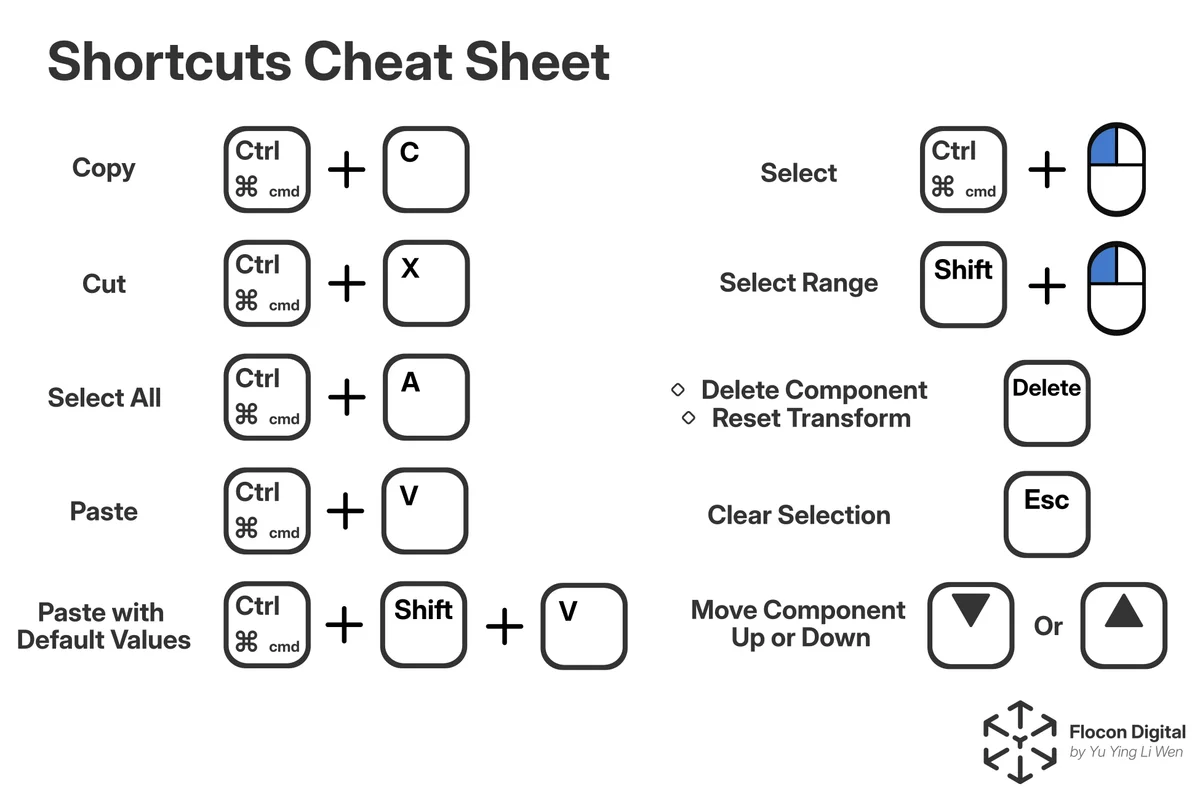
- Toggle selection ➡️ Ctrl + Left Click | ⌘ + Left Click
- Select range ➡️ Shift + Left Click | Shift + Left Click
- Select all ➡️Ctrl + A | ⌘ + A
- Clear selection ➡️ Esc
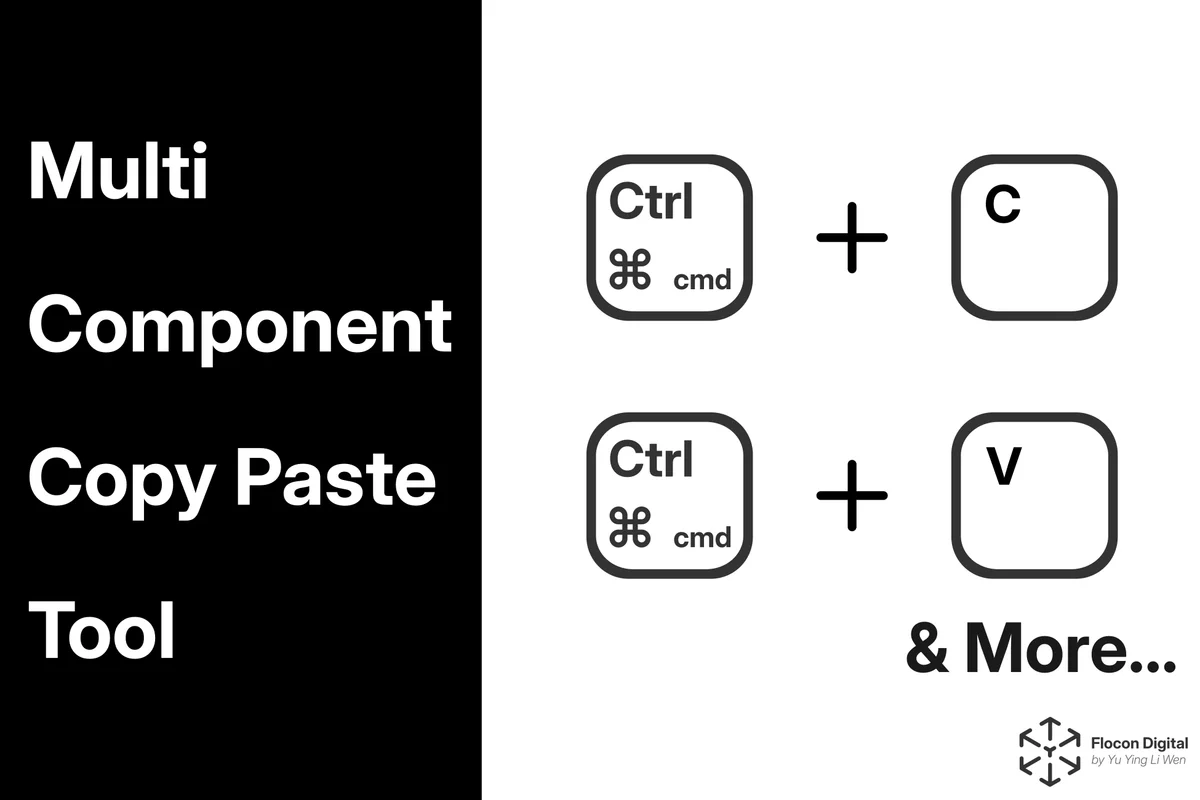
- Copy ➡️ Ctrl + C | ⌘ + C
- Cut ➡️ Ctrl + X | ⌘ + X
- Paste values ➡️ Ctrl + V | ⌘ + V
- Paste defaults ➡️ Ctrl + Shift + V | ⌘ + Shift + V
- Move up ➡️ Up Arrow
- Move down ➡️ Down Arrow
- Delete ➡️ Delete
------------------------------------------------------------------
✨ Features
- Select individual components or a continuous range.
- Copy components with their current values.
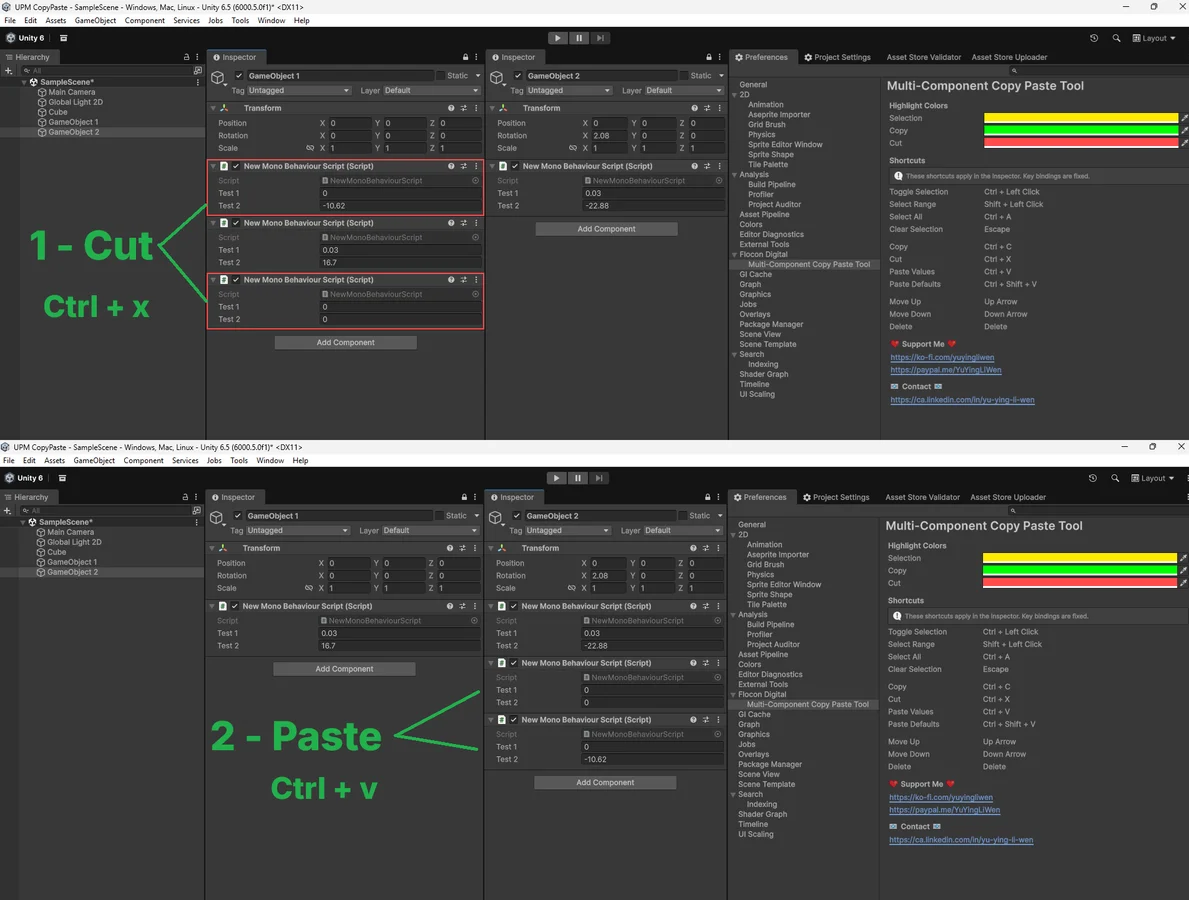
- Cut components and move them to another GameObject.
- Paste component types with default values.
- Move selected components up or down in the Inspector.
- Delete multiple selected components.
- Customize selection, copy, and cut highlight colors.
📋 Copy and paste
- Select the components you want to copy.
- Press Ctrl + C.
- Select the destination GameObject.
- Focus its Inspector and press Ctrl + V.
Paste Values adds components using the source components' current values. It does not overwrite matching components already on the destination.
Use Ctrl + Shift + V to add the same component types with default values instead.
✂️ Cut and paste
- Select the components you want to move.
- Press Ctrl + X.
- Select the destination GameObject.
- Focus its Inspector and press Ctrl + V.
Source components are removed only after they are successfully pasted. Cutting alone does not delete them.
↕️ Reorder and delete
With components selected:
- Press 🔼 key or 🔽 key to move the component up or down in the component order.
- Press Delete to remove them.
NOTE: Deleting a Transform component resets it to its default values.
🖱️ Context menu
Right-click a selected component to access the **Selected Components** submenu:
- Copy
- Cut
- Paste Values
- Paste Defaults
- Move Up
- Move Down
- Select All
- Delete